How to Search Yourself Online (and What to Do Next)
By WhatsMyName Apps team · · Updated · 11 min read
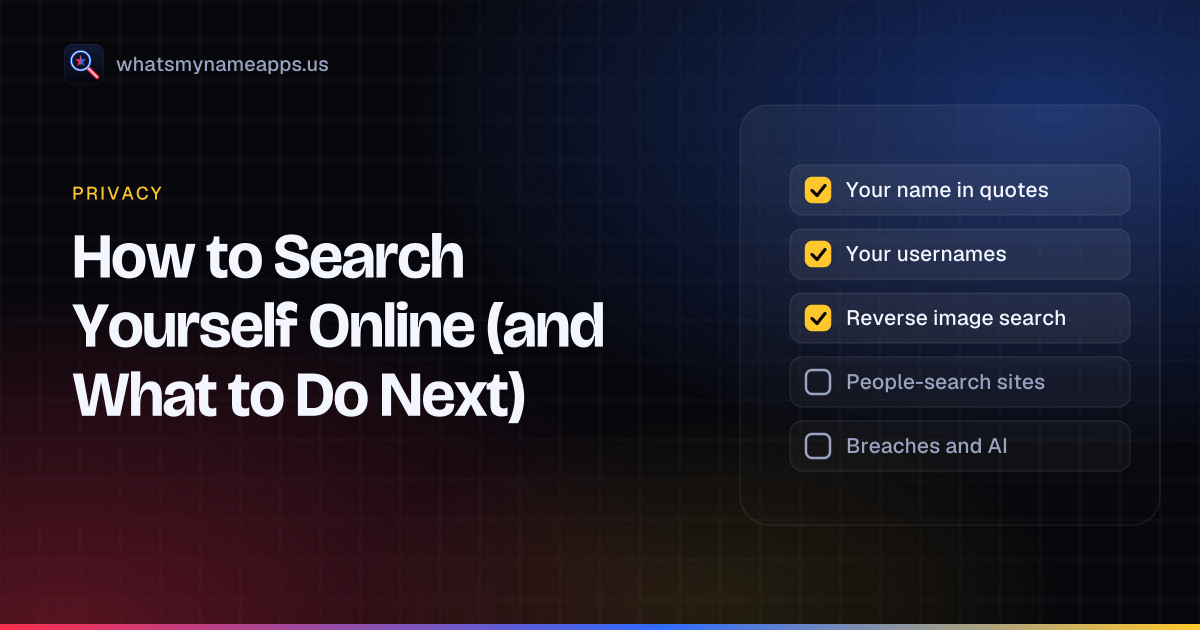
Searching your own name feels a little vain until you do it properly and find an old forum post, a tagged party photo, or a people-search page listing your home town and your relatives. A recruiter, a landlord or a new date may run the same search. It is better to see it first.
This guide follows the order a curious stranger usually works in. They start with your name, narrow it down with search operators, jump to your usernames, try your photo, open your profiles while logged out, then land on people-search sites. After that come the checks only you can do: Google's Results about you tool, data breaches, and what AI assistants say when someone asks about you.
How long it takes: plan on about an hour the first time, a little more if you have used many usernames over the years. Repeat check-ups take 15 to 20 minutes because you already have your list. If you want a broader audit of every account and data trail you have, our digital footprint check covers that; this guide is only about what a search turns up.
Before you start: five minutes of setup
- Open a private window and stay signed out. Search engines and social apps tailor results to you when you are logged in, and you want to see what a stranger sees.
- Start a log. A spreadsheet or a note works. You will fill in the removal-tracking table further down as you go.
- List your identifiers: every name you have used (maiden name, nickname, middle initial), current and past cities, email addresses, phone numbers and every username you remember.
Step 1: Search your name the way a stranger would
Type your full name into a search engine with no quotes, exactly as someone who just met you would. Note what fills the first page: your own profiles, someone else with your name, a news story, a people-search listing. That first page is the impression most people leave with, so it matters more than anything on page five.
Then open the Images and News tabs. Photos from old event pages and club websites often show up there and nowhere else.
Step 2: Narrow it down with search operators
A plain search mostly shows namesakes. A few operators make the results about you:
- Quotes:
"Jane Doe"returns pages with that exact phrase. Try variants with a middle initial, a maiden name or a nickname. - Add context:
"Jane Doe" Leedsor"Jane Doe" nursefilters to people like you. - site: limits results to one website.
"Jane Doe" site:linkedin.comshows what that platform exposes publicly. - Your other identifiers: search each email address and phone number in quotes, with and without dashes. If one appears on a public page, that page goes on your list.
- Exclude noise:
"Jane Doe" -actressdrops a famous namesake.
Look past the first page. Odd results such as a newsletter PDF or a comment on a local news story tend to sit on pages two and three. Repeat at least one search in a second search engine, because each one indexes the web differently.
Step 3: Search your usernames, not just your name
Your real name connects to what other people say about you. Your usernames connect to what you signed up for yourself, often years ago: game accounts, forums, music sites, a blog you forgot. Search engines miss many of these because thin profile pages often are not indexed. Someone who finds one of your handles will usually try it everywhere else, so you should too.
List every handle you remember, including old email prefixes and gamer tags. Then search your username across 3,165 sites with WhatsMyName Apps. It is free, needs no sign-up and takes up to five usernames per search, so you can run several old handles together. Found results show the public display name, avatar and bio where available, which helps you tell your accounts from strangers using the same name. The username goes to our server only to run the check and is not stored or logged.
Expect some noise if your handle is short or common. In our October 2026 test of 60 usernames across 3,166 sites, common handles such as johndoe already existed on 866 sites on average, while random made-up handles turned up on about 7. A long, unusual handle that comes back Found is much more likely to be yours.
Treat each result as a lead. Open the profile and confirm it is yours. Blocked and Unknown mean the check could not get a clear answer, so visit those by hand if the site matters to you. For memory-jogging tips, see finding old accounts.
Step 4: Run a reverse image search on your photos
Take the profile photos you use most and run them through a reverse image search such as Google Lens or another engine's image search. This shows where your face appears, including places you did not post it: a reposted photo, an old team page, or a fake profile using your picture.
If you find a profile pretending to be you, take screenshots, note the URL, and report it as impersonation through that platform's own form. Romance scammers in particular borrow real people's photos, so this step is worth doing even if you think your photos are not public.
Step 5: View your own profiles logged out
Your privacy settings only matter if they work. Open each social profile you keep in the private window, signed out, and look at it as a stranger would. Some apps also offer a "view as public" preview in their profile or privacy settings; use it where you find it.
Check four things on each profile: your profile photo and bio, your friends or followers list, photos you are tagged in, and any location, workplace or school details. A locked account can still show its photo, bio and a follower list. If you are not sure how to change what you see, our social media privacy settings checklist covers the main apps.
Step 6: Check people-search sites
People-search and data broker sites compile public records, old addresses and contact details into profiles that often rank well for a name search. Search your name plus your city, and your name plus "address" or "phone", and note any of these sites that list you.
Do not pay a people-search site to see your own report, and do not hand over more personal data than an opt-out form needs. Most offer a free opt-out; our guide on removing yourself from people-search sites walks through the main ones, and our look at sites like TruePeopleSearch shows which sites share an operator, so one request can cover several. WhatsMyName Apps is not one of these services: we do not search by real name, address or phone number.
Step 7: Use Google's Results about you
If you use Google, its Results about you tool looks for Search results that show your contact details: your phone number, home address or email address. You can review what it finds, ask for those results to be removed from Google Search, and turn on alerts so you hear about new ones. Google's help page says the feature is for users over 18 and is rolling out in certain markets.
In February 2026 Google expanded the tool in the US to government ID numbers. You can now add your driver's license, passport or Social Security number, and it will alert you if one shows up in Search results so you can request removal (Search Engine Journal's report on the launch). Google's separate personal information removal policy already covered Social Security and tax ID numbers, bank and card numbers, and images of IDs or signatures, so you can file a request even without monitoring turned on.
One limit matters: removing a result from Google Search does not remove the page from the internet. The page still exists on the original site, and other search engines may still show it. You still need to ask that site, or use its opt-out, to have it taken down.
Step 8: Check whether your email was in a data breach
Breaches are the part of your footprint you never posted. When a site you used gets hacked, your email, password and sometimes your address or birthday can end up in leaked files that circulate for years. Search each of your email addresses on a free breach-notification service, and check the password-checkup feature built into your browser or password manager.
You cannot delete a breach. What you can do is change any password that appears, change it everywhere you reused it, and turn on two-factor authentication on your email first, since your inbox resets everything else. Our guide to securing old accounts covers the details, and our email checker page previews the breach check we are building.
Step 9: Ask AI assistants what they know about you
More people now ask an AI chat assistant instead of a search engine. Try it: ask two or three assistants "What do you know about [your name] from [your city]?" and "Who is [your username]?". Three outcomes are common. The assistant knows nothing, which is fine. It finds you and summarises public pages, which tells you which pages carry the most weight. Or it mixes you up with a namesake, or invents details.
You cannot edit an assistant's answer directly. If it cites pages, fix or remove those pages and the answers follow over time. If it states something false and harmful about you, look for the provider's privacy or correction request form, which most large providers now offer. Keep a screenshot with the date.
What to fix first: a priority list
You will finish with a long list. Work through it in this order, because the top items carry real risk and the bottom ones are mostly cosmetic.
- Government ID numbers, bank details or ID images. Request removal from the site and from Google straight away, and consider a credit freeze if a Social Security number is exposed.
- Your home address and phone number. Opt out of each people-search listing and use Results about you for the Google side.
- Impersonation. Report fake profiles to the platform with your screenshots.
- Breached passwords. Change them, starting with email, banking and your main social accounts.
- Old accounts you control. Delete the ones you do not use; secure the ones you keep.
- Live profiles that show too much. Tighten who can see posts, friends lists and tags.
- Embarrassing but harmless content. Old posts, photos and comments. Delete what you can, ask friends to untag you, and leave the rest.
Some things cannot be removed, such as news reports or court records. For those, the practical move is to make sure accurate, current pages about you, such as a professional profile or a personal site, rank alongside them.
Keep a removal-tracking table
Removal requests take days or weeks, and listings come back. A simple table keeps you from redoing work and gives you evidence if you need to escalate. Copy these columns into your log:
| What you found | Where (URL) | Action taken | Requested | Re-check on | Status |
|---|---|---|---|---|---|
| Home address on a people-search listing | Listing URL | Opt-out form, email confirmed | Oct 13 | Nov 13 | Pending |
| Phone number in Google results | Search result URL | Results about you request | Oct 13 | Oct 27 | Approved |
| Old forum account under an old handle | Profile URL | Account deleted | Oct 13 | Jan 13 | Done |
| Fake profile using your photo | Profile URL | Impersonation report | Oct 13 | Oct 20 | Under review |
Set the re-check date when you file. One month is a good default for people-search sites, because new records can create a fresh listing after you opt out.
If you are job hunting: what recruiters look at
Recruiters and hiring managers often search candidates informally before an interview. In practice that means the first page of results for your name, your professional profile, and any public social accounts they can link to you. For technical roles they look at your code profile and portfolio, and for creative roles at your published work.
- Make your name search point somewhere good. A complete professional profile and, if you can, a simple personal page give recruiters an easy, accurate first result.
- Keep details consistent. Job titles, dates and employers should match across your CV and your public profiles. Gaps and mismatches raise more questions than old party photos do.
- Check the handle on your CV. If you list a username or portfolio link, run it through the username search and review what else shares that handle.
- Know your rights on formal checks. An informal search is one thing. A formal background check through a screening company is covered by the Fair Credit Reporting Act in the US: the employer needs your written permission, and you are entitled to a copy if it is used against you. The FTC explains this in Employer background checks and your rights, and notes that employers may look at public social media activity too.
Set alerts so you do not have to repeat everything
A self-search is a snapshot. To catch new mentions, set a free search alert for your name in quotes and for your main username. If you turned on alerts in Results about you, that covers new results with your contact details or ID numbers. Then put a reminder in your calendar to repeat the full routine twice a year, and again after a move, a job change or a known breach.
FAQ
How long does it take to search yourself online properly?
About an hour the first time, including making your list of names, emails and usernames. Later check-ups take 15 to 20 minutes.
Can someone tell that I searched for myself?
No. Search engines and username checks do not notify the people or accounts you look up. Using a private window simply keeps your own history and logins out of the results.
Is it safe to look myself up on people-search sites?
Searching is fine, but do not pay to see your own report and do not give extra personal data. An opt-out form should only need enough to find your listing and an email to confirm it.
Can I remove myself from Google completely?
No. Google can drop certain results, such as pages showing your contact details or ID numbers, but it cannot delete pages from other websites. Lasting removal means asking each site to take the content down.
What if someone else shares my name?
Add context to your searches (city, school, employer) and rely more on your usernames and photos, which are unique to you. If a namesake's bad press is confused with you, a clear professional profile helps people tell you apart.
How is this different from a digital footprint check?
This guide covers what a search reveals about you. A digital footprint check goes wider, including accounts and data that never show up in search results.
WhatsMyName Apps is not affiliated with Google or any platform mentioned here. Their names are trademarks of their owners.
Check a username now. Free, no sign-up, 3,165 sites. Try the username search
Related in Privacy
- Privacy
How to Check Your Digital Footprint (Step-by-Step, Free)
A free, step-by-step self-audit: how to find, see, and track your own digital footprint across usernames, email inboxes, search results, and domains, then shrink it.
· 6 min read
- Privacy
How to Remove Yourself from People-Search Sites
Opt-out steps for TruePeopleSearch, Spokeo, Whitepages and BeenVerified, why listings come back, and how to keep track of your removal requests.
· 6 min read
- Privacy
Sites Like TruePeopleSearch in 2026: What They Show and How to Opt Out
We checked 14 sites like TruePeopleSearch: who runs them, which share an operator, opt-out links and what each asks for. Privacy-first, no name searches.
· 9 min read
More from the blog
- Sherlock vs Maigret vs WhatsMyName: Which Username OSINT Tool to Use
- We Checked 60 Usernames Across 3,166 Sites: Here's What We Found
- 10 Free OSINT Tools for Username Investigations
- How to Find an Instagram Account by Username (and Check If It's Free)
- Reddit Username Lookup: Find a User or Recover Your Old Account
- How to Search YouTube by @Handle and Check If One Is Free