How to Lock Down Your Social Media Privacy Settings
By WhatsMyName Apps team · · 5 min read
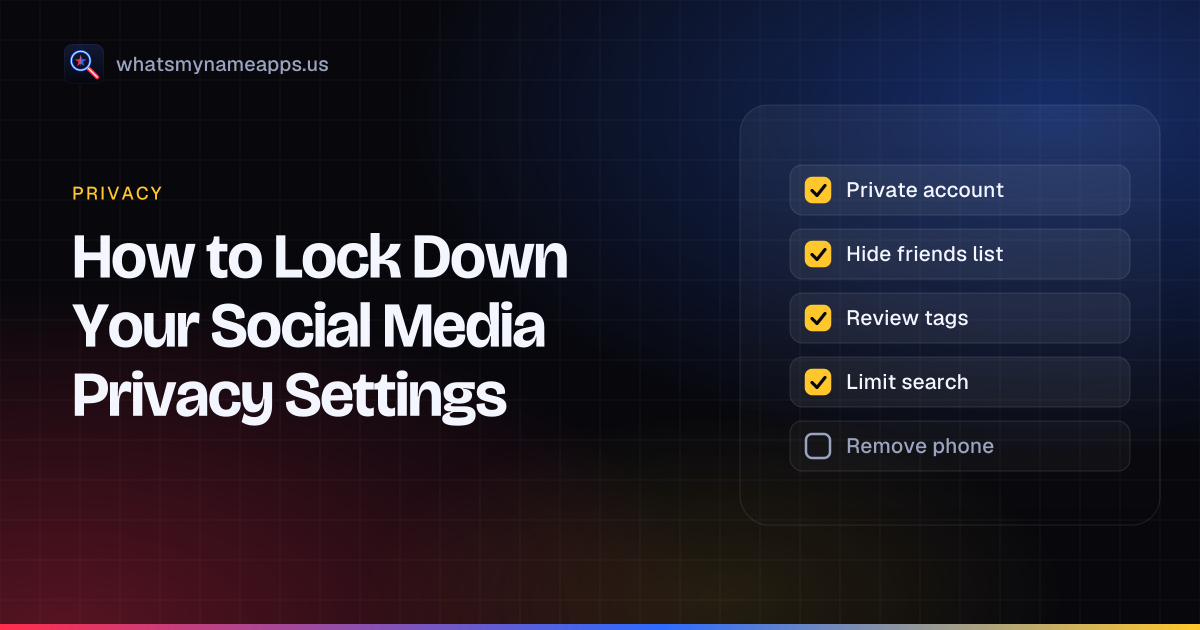
Most social apps start you out more public than you would choose. Posts are visible to anyone, your account gets suggested to people who have your phone number, and tags from friends land on your profile without asking. None of that is hard to change, but the settings are buried and every app names them differently.
This guide gives the path for each major app, using the names in each platform's help center at the time of writing. Apps rename menus often, so if a label has moved, search for it in the app's settings search box.
First, find out which accounts you have
Privacy settings only help on accounts you remember. Before you start, search your usual username across 3,165 sites to spot profiles you forgot about. It is free and needs no sign-up, and you can check up to five old handles at once. Anything you no longer use is better deleted than locked down; securing old accounts explains how to handle those.
Go to your profile, tap the menu in the top right, and under "Who can see your content" tap Account privacy. Turn on Private account and confirm with Switch to private. From then on, only followers you approve see your posts and reels.
Instagram's help center says accounts are public by default if you were 16 or older at sign-up. Business accounts cannot be made private, so switch back to a personal account first if you want that. While you are in settings, look at who can tag and mention you, and remove followers you do not recognize. Thinking of changing your handle as well? The Instagram username checker shows whether a new one is free.
TikTok
Tap Profile, then the menu button at the top, then Settings and privacy, then Privacy. Turn on Private account so only people you approve can follow you and watch your videos.
On the same Privacy screen, open Suggest your account to others. TikTok's support page lists three switches there: Contacts, Facebook friends, and People who open or send links to you. Turn off any you do not want. TikTok notes that your account may still be suggested to people you follow, interact with or share mutual connections with, even with all three off.
Click your profile picture, choose Settings & privacy, then Settings. The Audience and visibility section holds the controls for posts, stories, profile details, followers, and profile and tagging. Facebook's Privacy Checkup walks through the main ones in order and is the quickest place to start.
Three things to check in particular:
- The default audience for future posts. Set it to Friends rather than Public.
- Who can look you up. Facebook lets you limit who can find your profile using your email address or phone number.
- Profile details such as your workplace, home town and relationship, each of which has its own audience setting.
Facebook has no checker page of its own here, but the checker hub covers the other Meta app handles.
X (Twitter)
Tap your profile photo, then Settings and privacy, then Privacy and safety. Under Audience and tagging, turn on Protect your posts. According to X's help center, new followers then have to be approved, your posts are visible only to followers, and protected posts do not appear in third-party search engines like Google.
In the same section, check who can tag you in photos. Look through the discoverability options too, which control whether people who have your email address or phone number can find your account. The X username checker is useful if you want a new handle that is harder to link to your real name.
Snapchat
Snapchat's help center says only Friends you have added can contact you directly or view your Story by default. To confirm, tap the gear on your profile to open Settings and check Contact Me and the Story setting.
Location is the bigger issue on Snapchat. Open the Map, tap the gear for Map Settings, and turn on Ghost Mode. Snapchat says your location is then hidden from everyone on the Map, though Snap itself still receives it. You can set Ghost Mode for 3 hours, 24 hours, or until you turn it off. If you share location with some friends, choose exactly who instead of all friends.
YouTube
Most YouTube privacy risk comes from what your channel shows about your viewing. Sign in on a computer, click your profile picture, open Settings, then Privacy. Turn on Keep all my subscriptions private, and use the same page to hide your saved playlists. YouTube's help center says subscriptions are private by default, but older accounts may have changed that years ago.
Check each playlist's visibility too, since a public playlist of saved videos can say a lot about you. If you upload videos, look at the description and the frames themselves for anything that gives away where you live.
Steps that apply to every account
- Turn on two-factor authentication. An authenticator app is better than SMS where the app offers it. Privacy settings mean little if someone else can log in.
- Review tagged posts. Turn on tag approval where it exists, and untag yourself from posts you would not have shared.
- Limit discovery by phone and email. Most apps let people find you through contact syncing. Turn that off unless you want old contacts to see your account.
- Review connected apps. Remove quizzes, games and tools you once logged into with that account. Each one may still have access to your profile.
- Trim your bio. Your workplace, city, school and birthday together make you easy to identify, even with a private account.
Once you have changed the settings, check the result from the outside. Search yourself online in a signed-out browser, or ask a friend who does not follow you what your profiles show.
WhatsMyName Apps is not affiliated with Instagram, TikTok, Facebook, X, Snapchat or YouTube. Platform names are trademarks of their owners.
Check a username now. Free, no sign-up, 3,165 sites. Try the username search
Related in Privacy
- Privacy
How to Check Your Digital Footprint (Step-by-Step, Free)
A free, step-by-step self-audit: how to find, see, and track your own digital footprint across usernames, email inboxes, search results, and domains, then shrink it.
· 6 min read
- Privacy
How to Remove Yourself from People-Search Sites
Opt-out steps for TruePeopleSearch, Spokeo, Whitepages and BeenVerified, why listings come back, and how to keep track of your removal requests.
· 6 min read
- Privacy
Sites Like TruePeopleSearch in 2026: What They Show and How to Opt Out
We checked 14 sites like TruePeopleSearch: who runs them, which share an operator, opt-out links and what each asks for. Privacy-first, no name searches.
· 9 min read
More from the blog
- Sherlock vs Maigret vs WhatsMyName: Which Username OSINT Tool to Use
- We Checked 60 Usernames Across 3,166 Sites: Here's What We Found
- 10 Free OSINT Tools for Username Investigations
- How to Find an Instagram Account by Username (and Check If It's Free)
- Reddit Username Lookup: Find a User or Recover Your Old Account
- How to Search YouTube by @Handle and Check If One Is Free